How to Use MassiveMark to Convert AI Text from Gemini to DOCX and PDF
- Authors
- How to Use MassiveMark to Convert AI Text from Gemini to DOCX and PDF
- How to Use MassiveMark to Convert AI Text from Gemini to DOCX and PDF
Introduction
MassiveMark is BibCit's AI-powered document converter that lets you seamlessly convert text from AI chatbots like Gemini into perfectly formatted DOCX and PDF files. Whether you're working with complex math equations, tables, code snippets, or formatted text, MassiveMark preserves all formatting elements. Here is the latest tutorial from BibCit to Copy & Paste content from Gemini to Word with all Formatting Preserved
What You'll Learn:
- How to properly copy content from Gemini
- How to use the BibCit Web extension to copy paste markdown from Gemini responses
- How to convert Gemini response markdown to fully editable DOCX or PDF with all formatting preserved as it is, including to preserve math equations and formatting
- Copy & Paste content with Math Equations from Gemini to Word with All Formatting Preserved
Step 1: Install the BibCit Chrome Extension (Essential for Google Gemini Users)
The Markdown Capturer - BibCit is a Web Extension which allows Gemini users to copying true markdown of Gemini responses that is required to use Massivemark. To learn how it works and new updates on the web extension go here
1.1 Download the Markdown Capturer- BibCit Web Extension
- Visit Chrome/Edge Web Store and Search for "Markdown Capturer - BibCit "

OR
Use the Direct Link for Chrome Extension
Direct Link to Install on Edge Browser
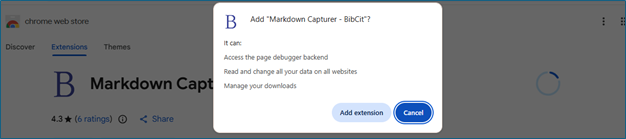
- Click "Add to Chrome"; Confirm Installation
Click "Add Extension" in the popup and complete the installation as shown:

Pin the Extension so it is always visible in the toolbar.
- Click the puzzle icon in Chrome's toolbar
- Find "BibCit Markdown Capturer"
- Click the pin icon to keep it visible


1.2 Now Copy Markdown Content from Gemini Using BibCit's Web Extension Only
Using the Extension:
Generate Content in Gemini
Go to and create your contentLook for the BibCit's Red coloured "Copy Markdown" Icon
Markdown capturer-bibcit web extension automatically adds a copy button in your Gemini's interface under the generated responses of Gemini
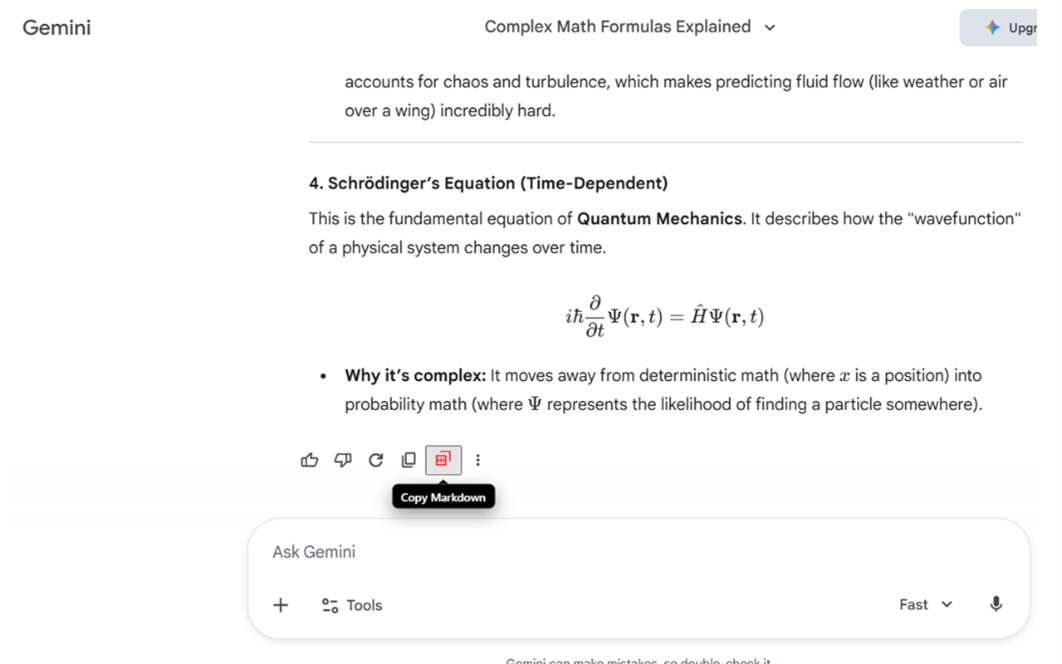
Click the Red Coloured Copy Markdown Button by BibCit
This captures the full markdown formatting, including:- Math equations
- Tables
- Code blocks
- Formatting (bold, italic, etc.)
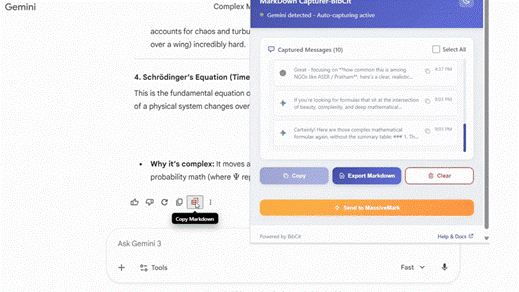
Tip: You'll see a notification as the red button turns to green which means that markdown content of your Gemini response has been copied
- Proceed to MassiveMark
Jump to Step 4: Paste into MassiveMark
Step 2: Paste into MassiveMark
2.1 Access MassiveMark Playground
Steps:
Go to MassiveMark
Visit:Ensure You're Logged In
If not logged in, click "Login/Sign In" and enter your credentials to Login OR Click Login with Google as you wish.
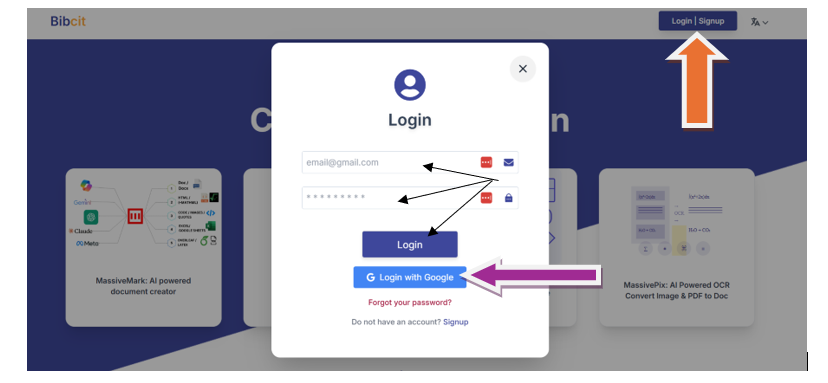
- You'll See the MassiveMark Playground Interface.
The page displays:
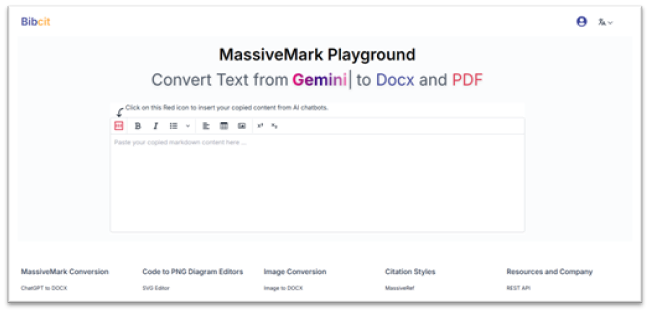
Tip: Another option is to Go to Massivemark from the Homepage of BibCit.com as shown below:
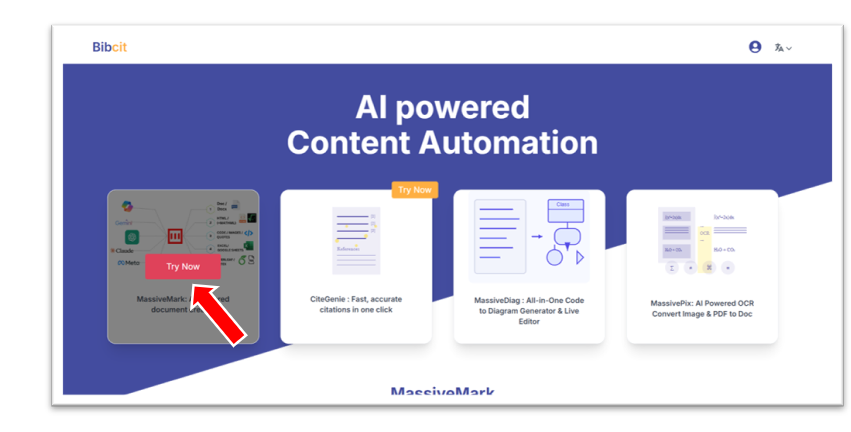
2.2 Insert Your Copied Content into Massivemark
Method 1: Using the MassiveMark Icon (Recommended)
- Click the Red MassiveMark Icon so that the input Modal Opens
Look for the red square icon in the editor toolbar (top-left)
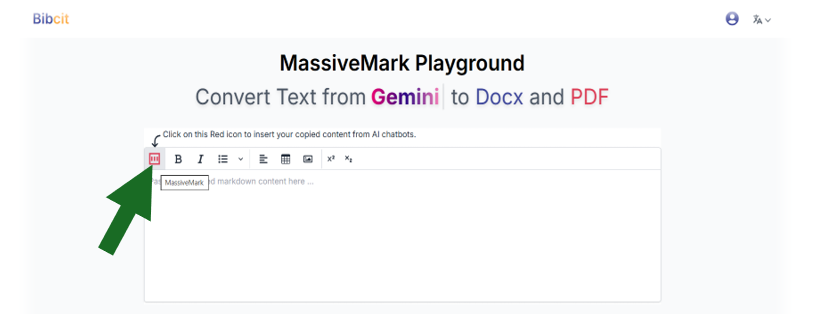
Massivemark Playground input Modal Opens
A popup window appears with:
- Title: "Paste markdown content here"
- Large text area
- Help dropdown
- "Insert" button
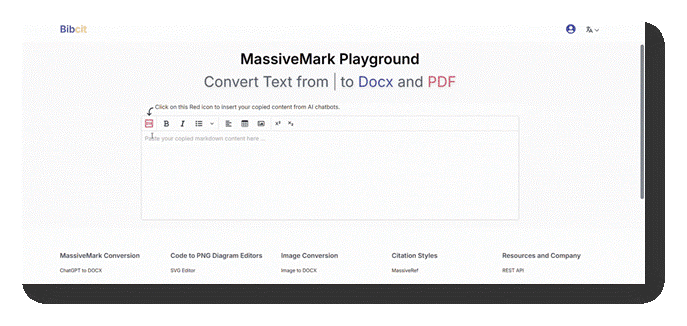
Paste Your Content
- Right Click from your mouse inside the Massivemark Playground input Modal text area and click Paste.
OR Press Ctrl+V (Windows) or Cmd+V (Mac) to paste using Keyboard.
- Your copied Gemini content appears with markdown syntax
Click on "Insert"
Now the Modal closes automatically
Content Appears Rendered
Your content now displays in the editor with:
- Math equations rendered
- Tables formatted
- Code blocks styled
- In-text citations with hyperlinks to sources (if any)
- Images
- All formatting preserved as it in in your Gemini response
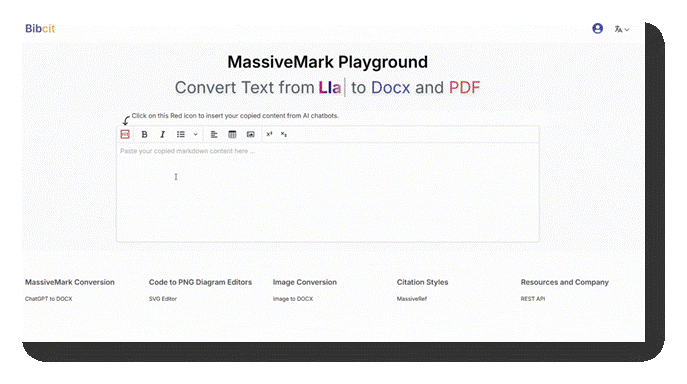
Method 2: In order to Continue to Add more Content into the same Document you can now follow simply follow all the above steps and add as many copied messages from Gemini into the same document as shown below
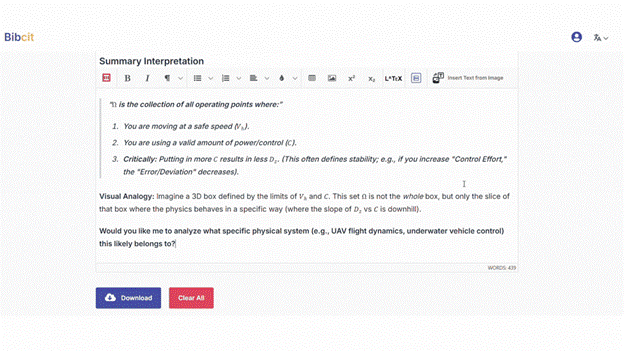
Step 3: Download as DOCX or PDF or HTML or Save/Share
Once your content is rendered in the MassiveMark editor, you can download it.
3.1 Download as DOCX
Steps:
Locate the Download Button
Below the editor, find the sticky toolbar with:- 🔽 Download button (blue, with dropdown arrow)
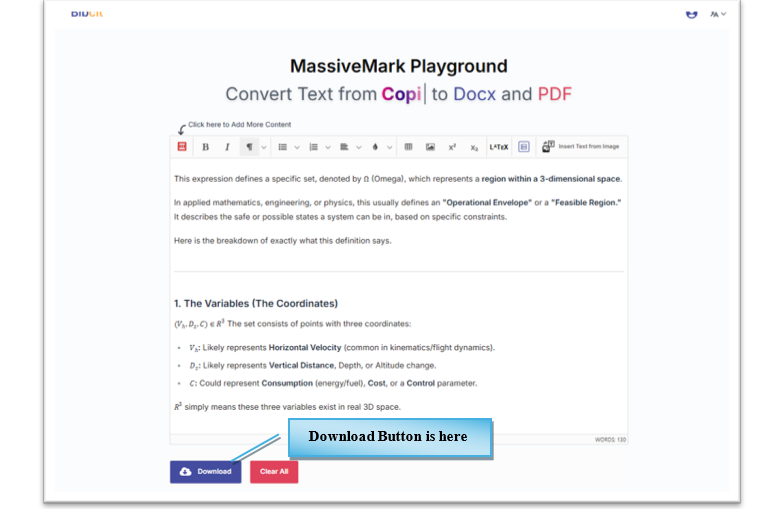
Download Button is here
Click the Download Button
A dropdown menu appears with options:- Docx (Microsoft Word icon)
- PDF (Red PDF icon)
- Save for Later
Click "Download as Word" right below of the editor.
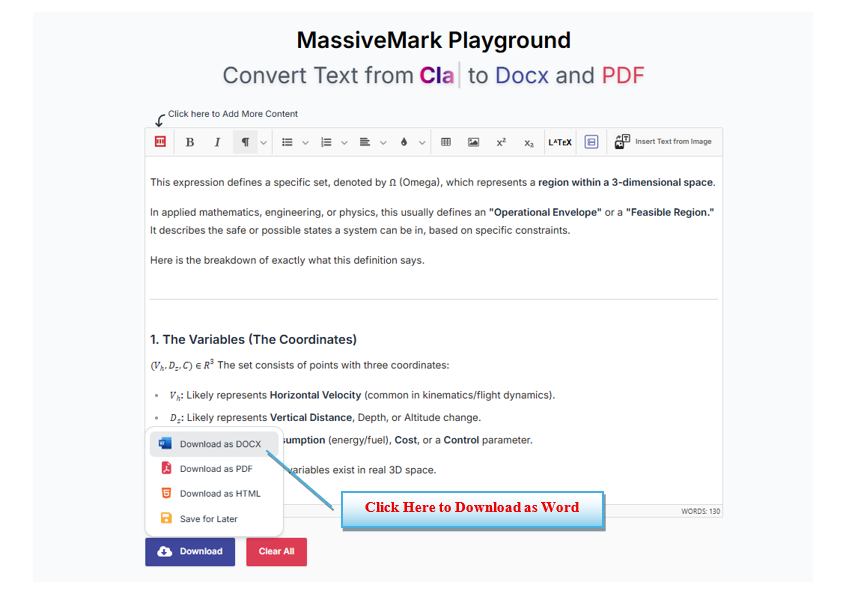
Click Here to Download as Word
Download Begins
- Button shows "Downloading..."
- File downloads to your browser's download folder
Open Your DOCX File
- Locate the downloaded file (usually in Downloads folder)
- Open with Microsoft Word, Google Docs, or LibreOffice
What's Included:
- All text with original formatting
- Math equations (editable in Word)
- Tables with proper structure
- Code blocks with syntax highlighting preserved
- In-text citations (if any)
- Images (if any)
3.2 Download as PDF
Steps:
Locate the Download Button
Below the editor, find the sticky toolbar with:- 🔽 Download button (blue, with dropdown arrow)
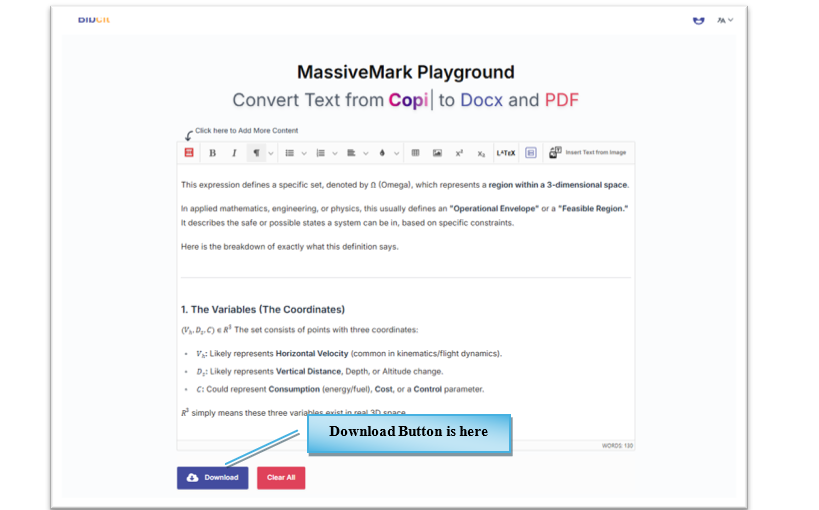
Download Button is here
- Select " Download as PDF" from the dropdown
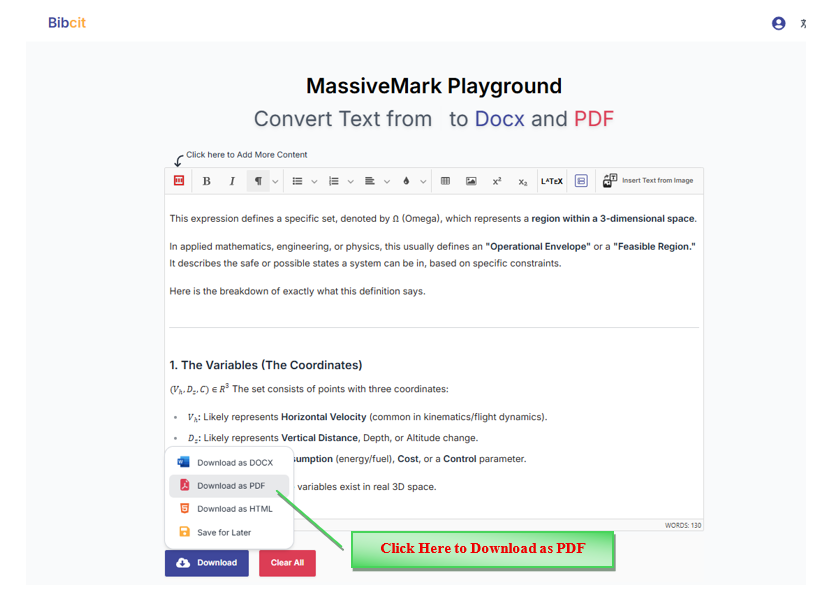
Click Here to Download as PDF
Download Begins
- Button shows "Downloading..."
- PDF file downloads to your browser's download folder
Open Your PDF
- Locate the downloaded file
- Open with any PDF reader
PDF Features:
- Print-ready formatting
- Non-editable (locked formatting)
- Smaller file size
- Universal compatibility
3.3 Save for Later
Why Save?
If you want to download or continue to edit and work on the document later or access it from another device or create a public shareable link to share the content view to someone else.
Steps:
Locate the Download Button
Below the editor, find the sticky toolbar with:i. 🔽 Download button (blue, with dropdown arrow)
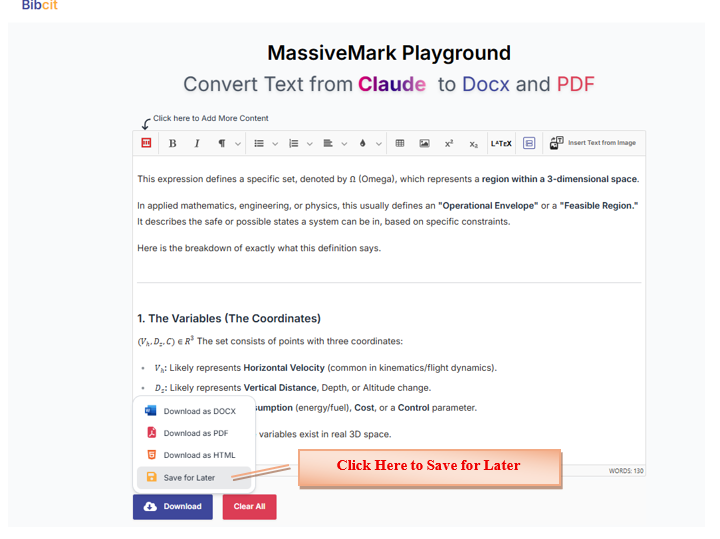
Select "Save for Later" from the dropdown
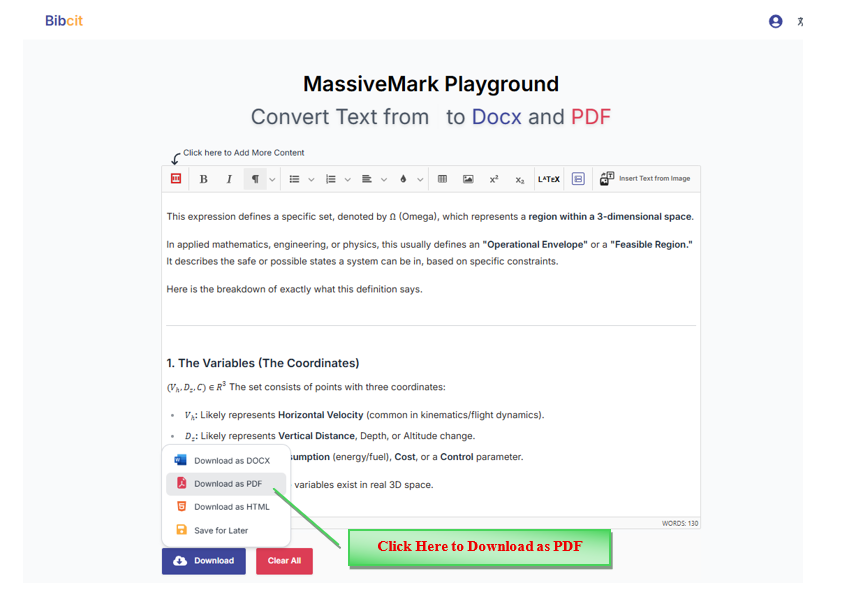
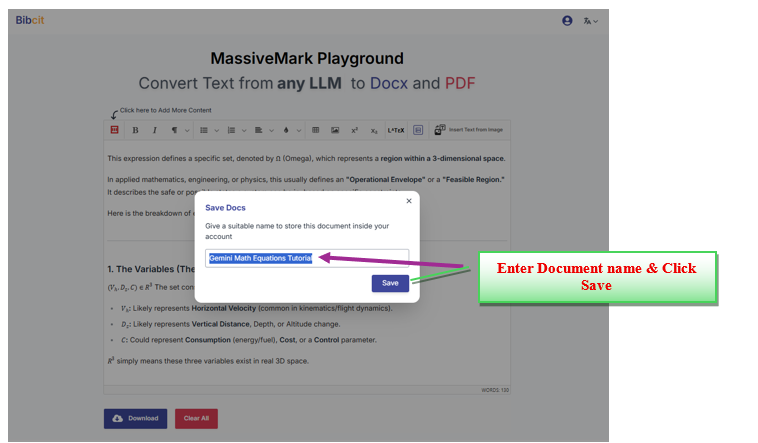
Click Here to Save for Later
A modal appears asking for a document name
Enter a Document Name
- Default name is auto-generated from first line of content
- You can edit the name
- Example: "Gemini Math Equations Tutorial"

Enter Document name & Click Save
Click "Save"
Success Confirmation
- Modal closes
- Document is saved to your BibCit account
Access Saved Documents
- Go to My Dashboard:
- Click "My Documents" in the sidebar
- Find and download your saved document anytime
Troubleshooting
T1 Credit Error Issues
Problem:
You see an error message: "Insufficient credits" or "Credit balance too low"
Solution:
Check Your Credit Balance
- Go to My Dashboard:
- Look for your current credit balance
If Balance is Zero:
- Option 1: Verify your email if you haven't already (you can receive one-time bonus 1000 credits)
- Option 2: Purchase credits via the Payment section in My Dashboard
Contact Support
If you believe you should have credits but don't see them:- Email: bibcithelp@gmail.com
T2 Sign-Up Requirements
Problem:
"You must be logged in to use MassiveMark"
Solution:
- Create an Account
See the following Steps to Sign Up for Free Account on BibCit.com
Steps to Sign Up for Free Account on BibCit.com
Why Sign Up?
MassiveMark requires a free BibCit account to use. This allows you to:
Get free credits or purchase additional credits for usage across BiBCit's suite of services
Save documents for later or Share the by generating a public view URL.
Track your credit usage across massivemark and the entire suite of BibCit services
Access your payment history in your dashboard
Sign-Up Process:
Visit BibCit Homepage
Go to:Click "Sign Up" or "Get Started"
Look for the sign-up button in the top-right cornerChoose Sign-Up Method
You can register using:Email address and Password, or,
Google account
Complete Registration
Enter your email (if using email registration)
Create a password
Log In
Once your have signed up you can now log in to your new BibCit account.
Claim Your Free Credits to use with Massivemark
What Are Credits?
MassiveMark uses a credit based pay as you go payment system for document conversions:
- 1 credit = 1 MB of markdown content processed using MassiveMark
New users can Verify your email address (check spam folder if needed) and receive one-time free credits upon verification of their email address post sign-up
How to Claim Free Credits:
Log Into Your Account
Make sure you're logged in at:Navigate to My Dashboard
Go to:Check Your Credit Balance
Your available credits will be displayed on the dashboardVerify Email for Additional Credits
If you haven't verified your email, you will see an option to claim bonus credits after verification worth $10First-Time User Bonus
New users typically receive free credits automatically upon first sign-up
Need More Credits?
If you run out of free credits, visit the Payment section in My Dashboard to purchase additional credits.
Already Have an Account?
- Click Sign In at
- Enter your credentials to login or Login using Gmail
- If you forgot your password, use "Forgot Password" option
Can I Use Without Signing Up?
No, MassiveMark requires a free account to:- Track usage and credits
- Save your documents
- Provide conversion history
T3 Formatting Not Preserved
Problem: Math equations, tables, or formatting appear broken or missing in downloaded DOCX/PDF
Possible Causes & Solutions:
1. You Used Ctrl+C Instead of Markdown Capturer-BibCit web extension's own red-coloured Copy markdown Button
- Solution: Go back to Gemini, make sure you have downloaded the web extension called Markdown Capturer-Bibcit and that you only use the red "Copy Markdown" button that appears underneath the Gemini responses (see [Step3.1])
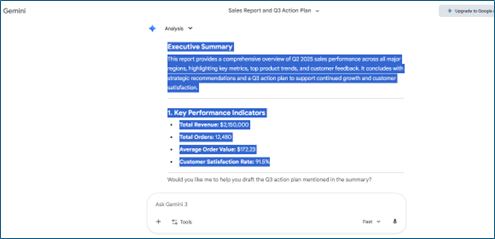
Attention: ❌ DO NOT use keyboard shortcuts:
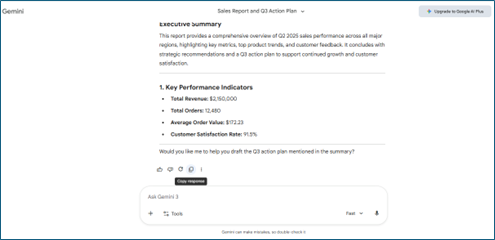
- Don't use Gemini's bulit-in copy button
- Don't use Ctrl+C (Windows) or Cmd+C (Mac)
- Don't manually select and copy text
- Don't use browser's right-click → Copy
Why?
These methods copy only plain text and lose all markdown formatting, including:
- Math equations
- Tables
- Code blocks
- Formatting styles
Visual Example:
Copy Markdown-Formatted Output from Google Gemini via BibCit Estension.
After using Google Gemini to analyze your data and generate a report, don't copy the text manually and do not use the native inbuilt copy button.
Copy button
2. Content Wasn't Fully Loaded
- Solution: Wait for Gemini to completely finish generating before copying
T4 Download Button Not Working
Problem:
Clicking Download does nothing, or the button is grayed out
Solutions:
Is Content Inserted?
- Make sure you've clicked "Insert" after pasting content
- Editor should show rendered content, not empty
Browser Pop-Up Blocker?
- Check if your browser blocked the download popup
- Allow downloads from bibcit.com in browser settings
Try a Different Browser
- Test with Chrome, Firefox, Brave or Edge
Clear Browser Cache
- Clear cache and cookies for bibcit.com
- Refresh the page and try again
Check Internet Connection
- Ensure stable connection during download
T5 Web Extension Not Capturing Markdown Content
Problem:
BibCit extension doesn't show its red "Copy Markdown" button in my Gemini app.
Solutions:
Extension Installed?
- Check Chrome extensions (chrome://extensions/)
- Ensure "BibCit Markdown Capturer" is enabled
Refresh Gemini Page
- Hard refresh: Ctrl+Shift+R (Windows) or Cmd+Shift+R (Mac)
Check Extension Permissions
- Extension may need permission to access Gemini
- Click extension icon → "Manage Extensions" → Enable site access
Contact BibCit Support via LiveChat or Email Instead
- If extension issues persist, use livechat option on BibCit to seek help from developers or email them with a small description and/or video of your issues. Help will arrive for you instantly!
Support Resources
Need More Help?
Live Chat Support
Get instant assistance: Live Chat
Join Our Community
Discord server for tips, troubleshooting, and updates:
Email Support
For detailed inquiries:
bibcithelp@gmail.com
Other BibCit Tools
MassivePix:
OCR and document conversion from images/PDFsCiteGenie:
Automatic citation generator for research papersMy Dashboard:
Manage saved documents, citations, and account settings
Summary Workflow
Quick Reference:
- ✅ Sign up at BibCit → Claim free credits
- ✅ Generate content in Gemini
- ✅ Install Markdown Capturer-BiBCit Web extension and Click the red Copy Markdown button under your generated Gemini response (not any other method Ctrl+C)
- ✅ Go to MassiveMark:
- ✅ Click red MassiveMark icon → Paste → Insert
- ✅ Click Download → Choose DOCX or PDF
- ✅ Done! Open your perfectly formatted document
Tutorial Version: 1.0
Last Updated: January 2026
Compatible With: Gemini, ChatGPT, Claude, Copilot, Perplexity, LeChat, NotebookLM, Deepseek, Grok and every other AI chatbot or any platform that allows you to copy response as markdown
Pro Tip: Bookmark MassiveMark for quick access whenever you need to convert AI-generated content!